
Conference Room
How to Run a Hybrid Meeting in Fullerton: A Checklist for Small Teams
Published Last updated 5 min read
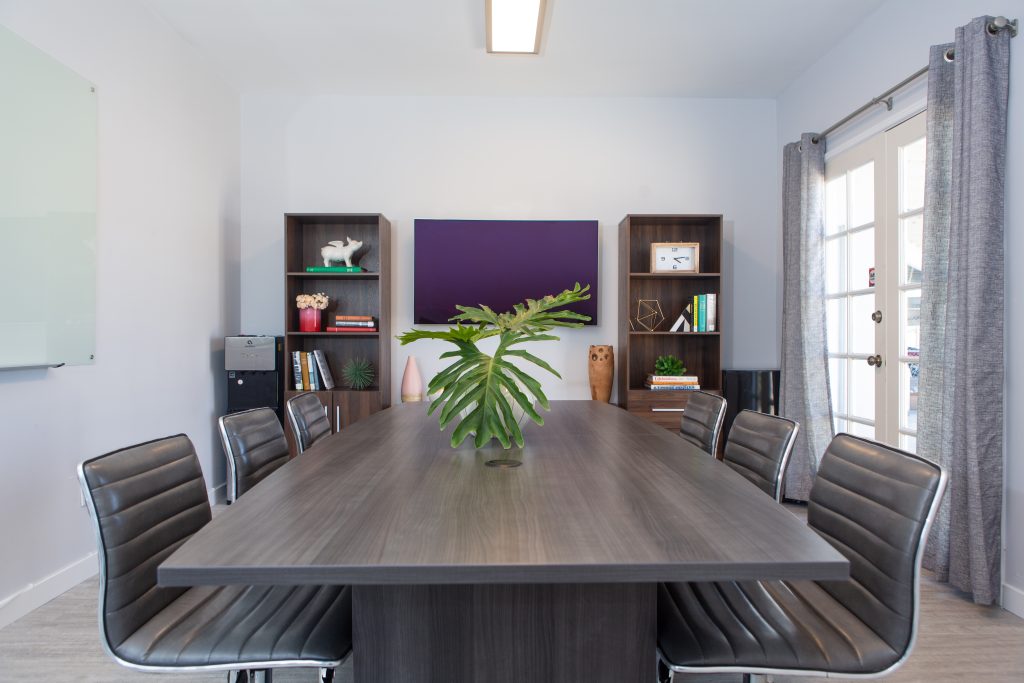
A hybrid meeting brings people around one table while others join online. The difficult part is not sending a video link: it is making sure the person joining remotely can hear the discussion, see the work, and help make decisions.
If you are arranging a client review or small-team planning session in Fullerton, use this checklist before booking a room and again before your guests arrive. Start with the Conference Rooms page for room details, then confirm the equipment your particular call requires.
Before booking: separate the room from the video-call setup
Wi-Fi and a display are useful, but they do not automatically mean a room includes a conferencing camera, a speakerphone, or a managed video-meeting system. Ask these questions before committing:
- How many people will attend in person, and can everyone sit within the camera’s view?
- What display connection is available, and does your laptop need an adapter?
- Are a camera and microphone provided, or should the organizer bring them?
- Can you test your chosen meeting application and guest Wi-Fi before the session?
- Does the reservation include enough time for setup and packing up?
- What are the arrival instructions, total cost, and current cancellation terms?
Tell the venue about accessibility needs and any particular equipment requirements. Do not assume early access or technical support is included. For a larger planning session, pair this checklist with our half-day offsite meeting agenda.
Assign three simple roles
Choose a facilitator to keep the discussion moving, a technical host to manage the call and screen sharing, and a note-taker to capture decisions. On a small team, one person can cover more than one role. Someone should explicitly watch for remote questions instead of expecting the presenter to notice everything.
Send one invitation with the meeting link, time zone, agenda, documents, and organizer’s contact details. State the decision you want to reach. Ask participants whether they need captions or another accommodation, and check what your chosen platform supports.
Pack for the setup you have confirmed
Bring your charged laptop, power supply, confirmed display adapter, and access to the meeting account. If you need a separate camera or conference speakerphone, arrange it in advance and test it with that laptop. A built-in laptop microphone may not capture everyone clearly across a table.
Keep a local copy of your presentation and share the agenda beforehand. Choose a backup way to contact remote guests if the call drops. A phone dial-in or hotspot can be an option only if your meeting service, mobile plan, and reception support it.
A 15-minute setup checklist
Reserve this time within your booking; it is a planning allowance, not a guarantee that every setup takes 15 minutes.
- Minutes 0–5: Connect. Plug in the laptop, join the network, connect the display, and open the meeting. Close unrelated documents and silence notifications.
- Minutes 5–10: Test from outside the room. Ask a remote colleague to join. Check whether they can hear a person at each seat, see the group, and read shared content. Verify that people in the room can hear the remote colleague too.
- Minutes 10–15: Rehearse the handoff. Test screen sharing and presenter permissions. Open the shared notes, check the backup contact method, and leave the agenda visible for arrivals.
Prevent echo before it interrupts the conversation
Use one room device for meeting audio. Other laptops can display notes, but should disconnect from the meeting’s audio rather than only mute their microphones. Zoom’s echo troubleshooting guide identifies multiple computers with active audio in the same room as a possible cause of echo.
Make remote participants part of the meeting
Begin with introductions and a quick sound check. Invite remote input before moving to the next topic, and avoid side conversations that are difficult to follow online. If someone points at a chart or writes on a whiteboard, explain the point aloud and put the key information in the shared notes.
Share slides through the meeting application, not only on the room’s display. Before a decision is final, read it back and check for questions from both groups. End with an owner and due date for each action, then send a short written summary.
Planning your Fullerton meeting at ZworkSpace
ZworkSpace’s conference room seats up to eight and offers Wi-Fi, an HDMI display, and a whiteboard. Confirm camera and microphone arrangements separately; do not assume dedicated video-conferencing equipment is included.
Review Conference Rooms and request availability. Include your preferred date, total time including setup, in-person headcount, and remote-meeting equipment needs so the team can confirm suitability before you book.
Frequently asked questions
Is an HDMI display enough for a hybrid meeting?
No. It shows content, but you still need a suitable camera, microphone, speaker, internet connection, and meeting application. Confirm how those pieces will work together.
Should everyone in the room join on their own laptop?
They can use laptops for shared documents or chat. Keep meeting audio on the selected room device and disconnect it on the other devices to reduce echo risk.
What if the connection fails?
Pause and tell remote participants what is happening through the agreed backup contact method. Use the fallback you tested, or reschedule the decision if key participants cannot take part.